Home · Games · Fortnite
Best Fortnite settings for FPS and visual clarity
The best Fortnite settings for FPS start in the Video tab. Epic's own competitive guide sets Rendering Mode to Performance, Window Mode to Fullscreen, VSync off, and NVIDIA Reflex Low Latency to On + Boost. Hypertune's technicians are checking every value on this page before it goes live.
Boost my performanceLast updated 22 October 2026. Menu labels checked against Epic's guide of 30 April 2026 and Epic's support pages. Competitive is max FPS plus clarity. Quality is DirectX 12 when the PC already holds its refresh rate.
[TECHNICIAN] Fortnite version the settings were checked on, and the date. The page shows both.
Video settings
Best Fortnite video settings
Path: Esc, the gear icon, then the Video tab (monitor icon). Fortnite's Video tab has three parts: Display, Graphics Quality and Advanced Graphics. Change Rendering Mode first, click Apply, and restart Fortnite, because the Graphics Quality list changes with the mode.
[TECHNICIAN] Every value in a yellow box is a draft. Competitive drafts are Epic's own values from its 30 April 2026 guide. Quality values are left for the technicians. Confirm or replace each one on the current version.
Display
| Setting | Competitive | Quality | Why |
|---|---|---|---|
| Window Mode | Fullscreen | Value needed | Epic uses Fullscreen to keep input lag down. The other options are Windowed Fullscreen and Windowed. |
| Resolution | Native | Native | Epic says to pick the monitor's own resolution, and notes that many competitive players run 1920 × 1080. |
| Vsync | Off | Value needed | Epic turns Vsync off for less input lag, with a FreeSync or G-Sync monitor to stop tearing. |
| Rendering Mode | Performance | DirectX 12 | Epic says Performance runs on DirectX 12 and turns off most rendering features to lighten the load on the CPU and GPU. Restart Fortnite after you change the mode. |
| Frame Rate Limit | Unlimited | Value needed | Epic leaves the limit on Unlimited, and matches it to the monitor's refresh rate if the screen tears. |
[TECHNICIAN] Rendering Mode options. Epic's support page still lists a DirectX 11 command line, while Tier1Settings (28 April 2026) says DirectX 11 was removed from the menu in version 40.10. Confirm which modes the current menu shows: Performance, DirectX 12, and whether DirectX 11 is still there.
Graphics Quality
| Setting | Competitive | Quality | Why |
|---|---|---|---|
| View Distance | Near | Value needed | Epic says players stay clear and visible on Near, because View Distance changes the scenery, not the players. |
| 3D Resolution | 100% | 100% | Epic keeps 3D Resolution at 100%, and lowers it 10% at a time only if Fortnite does not reach the FPS you want. |
| Textures | Low | Value needed | Epic sets Textures to Low for performance. |
| Meshes | Low | Value needed | Epic sets Meshes to Low, so objects draw with less detail. |
| Anti-Aliasing & Super Resolution | Value needed | Value needed | Smooths jagged edges. The Super Resolution options (TSR, NVIDIA DLSS) render fewer pixels to raise FPS. |
| Nanite Virtualized Geometry | Not shown in Performance | Value needed | DirectX 12 only. Adds geometry detail. |
| Shadows | Not shown in Performance | Value needed | DirectX 12 only. |
| Global Illumination | Not shown in Performance | Value needed | DirectX 12 only. Lighting detail. |
| Reflections | Not shown in Performance | Value needed | DirectX 12 only. |
| Effects | Value needed | Value needed | Explosions, smoke and similar effects. |
| Post Processing | Value needed | Value needed | Bloom, depth of field and color grading. |
| Hardware Ray Tracing | Not shown in Performance | Value needed | DirectX 12 only. |
[TECHNICIAN] Confirm which Graphics Quality settings the current Performance mode shows. Epic's guide lists only View Distance, 3D Resolution, Textures and Meshes for Performance mode.
Advanced Graphics
| Setting | Competitive | Quality | Why |
|---|---|---|---|
| Show FPS | On | On | Epic turns Show FPS on so you can see the frame rate change as you adjust each setting. |
| NVIDIA Reflex Low Latency | On + Boost | Value needed | For an NVIDIA graphics card. Epic says Reflex is designed to reduce GPU latency. |
| Motion Blur | Off | Off | Motion Blur blurs the screen during fast movement. |
[TECHNICIAN] On the CS2 page, Reflex + Boost is only for PCs that do not lose frames with it on. Confirm whether the same rule applies to Fortnite.
Frame Rate Limit and G-Sync
Fortnite's Frame Rate Limit is a list of set values, such as 144, 240 and 360 FPS, plus Unlimited. A custom number such as the CS2 page's G-Sync caps cannot be typed in the game.
[TECHNICIAN] G-Sync cap for Fortnite. Confirm the current Frame Rate Limit list, and whether to cap with a value from that list, with NVIDIA Control Panel Max Frame Rate, or not at all.
Sensitivity
Fortnite sensitivity
Fortnite's mouse sensitivity is in Settings > Mouse and Keyboard > Mouse Sensitivity, as X-Axis Sensitivity and Y-Axis Sensitivity. Epic's guide suggests both in the 5 to 10% range. To find your own starting point, a full mouse-pad swipe should turn you between a half turn and a full turn. Practice in Fortnite Creative. If you under-flick, raise it. If you over-flick, lower it. Then leave it alone.
| DPI | X-Axis and Y-Axis Sensitivity |
|---|---|
| 400 | Value needed |
| 800 | Value needed |
| 1600 | Value needed |
[TECHNICIAN] Starting X-Axis and Y-Axis values for 400, 800 and 1600 DPI. Also confirm the labels and values for Targeting Sensitivity and Scope Sensitivity, if the page should include them.
Game and audio
Fortnite game and audio settings
| Setting | Where | Value |
|---|---|---|
| 3D Headphones | Audio > Sound | On Epic says to use Fortnite's own 3D sound, not third-party audio software running in the background |
| Visualize Sound Effects | Audio > Sound | On Epic says this shows the direction of certain sounds on a radial indicator |
| Simple Build | Game > Building | On |
| Simple Edit | Game > Editing | On |
| Toggle Sprint | Game > Movement | Off Sprinting becomes the default, so you hold one key less |
| Edit bind | Keyboard Controls | F Wall, floor, stairs and roof go on the keys around WASD |
[TECHNICIAN] All six values above are Epic's suggestions from its 30 April 2026 guide. Confirm them, and add any game or audio setting the technicians use for Fortnite.
Settings by PC
Best Fortnite settings by PC
Epic's support page suggests Performance mode for PCs with low frame rates. In Performance mode you can also untick High Resolution Textures in the Epic Games Launcher to save over 15 GB, as the stutter section below shows.
| Setting | Low-end (GTX 1650, RX 6500 XT) | Mid-range (RTX 3060, RX 6700 XT) | High-end (RTX 4070, RX 7800 XT and up) |
|---|---|---|---|
| Rendering Mode | Performance | Value needed | Value needed |
| Resolution and 3D Resolution | Value needed | Value needed | Value needed |
| Anti-Aliasing & Super Resolution | Value needed | Value needed | Value needed |
| View Distance | Value needed | Value needed | Value needed |
| Textures and Meshes | Value needed | Value needed | Value needed |
| Effects and Post Processing | Value needed | Value needed | Value needed |
| Nanite, Shadows, Global Illumination, Reflections | Not shown in Performance | Value needed | Value needed |
| NVIDIA Reflex Low Latency | Value needed | Value needed | Value needed |
[TECHNICIAN] Values for each PC tier, and whether the same three example graphics cards from the CS2 page suit Fortnite.
The Windows and NVIDIA settings are the same on every PC.
After the settings
Fortnite stutter and FPS drop fixes
Stutter on DirectX 12: shader cache
Epic's support page says Fortnite can keep recompiling shaders on DirectX 12, which causes heavy stutter, and that clearing the graphics driver's shader cache can fix it. Quit Fortnite, open the DXCache folder for an NVIDIA card or the DxCache folder for an AMD card, delete the files, and skip any that are in use. Then launch Fortnite and play a few matches so the cache rebuilds.
[TECHNICIAN] Exact folder paths to show for NVIDIA and AMD (Epic's article lists folders under AppData\Local), and whether to do this only after a driver or Fortnite update, as on the CS2 page.
Rendering Mode does not stay saved
If Fortnite goes back to another Rendering Mode after a restart, Epic's support page sets the mode in the Epic Games Launcher instead. Open the profile icon, then Settings, expand Fortnite, tick Additional Command Line, and type -d3d12 -FeatureLevelEs31 for Performance or -d3d12 -sm6 for DirectX 12.
[TECHNICIAN] Confirm the launcher path is still the same in the current Epic Games Launcher.
High Resolution Textures in Performance mode
Epic's support page says that in Performance mode you can remove the high-resolution textures to save over 15 GB. In the Epic Games Launcher, open Library, click the three dots on Fortnite, choose Options, untick High Resolution Textures, and click Apply.
NVIDIA and Discord overlays
Turn off the NVIDIA overlay in the NVIDIA App, and turn off the Discord overlay in Discord's settings.
[TECHNICIAN] The CS2 page says these two overlays cost more than the Windows capture toggle. Confirm whether that holds for Fortnite.
Windows and NVIDIA
Windows and NVIDIA settings for Fortnite
These five Windows settings and the NVIDIA 3D settings below are the ones Hypertune's technicians approved for CS2 on 22 October 2026, with the Fortnite program file in place of the CS2 one.
[TECHNICIAN] Do the same five Windows settings and the same NVIDIA Control Panel settings apply to Fortnite? Mark any that change, especially core 0 affinity and Max Frame Rate.
Windows settings for Fortnite
Hardware-accelerated GPU scheduling: On. Settings > System > Display > Graphics > Advanced graphics settings. Restart the PC after changing it.
High performance graphics for Fortnite. Settings > System > Display > Graphics, add FortniteClient-Win64-Shipping.exe, then Options > High performance.
Turn off background and startup apps. Task Manager > Startup apps, and disable what you do not need running while you play.
Take core 0 away from Fortnite. With Fortnite running, open Task Manager > Details, right-click FortniteClient-Win64-Shipping.exe > Set affinity and untick CPU 0. If your processor has Hyper-Threading, untick CPU 0 and CPU 1. Windows resets this each time Fortnite starts.
High Performance power plan. Control Panel > Hardware and Sound > Power Options > High performance. If it is not listed, open Show additional plans.
NVIDIA Control Panel settings for Fortnite
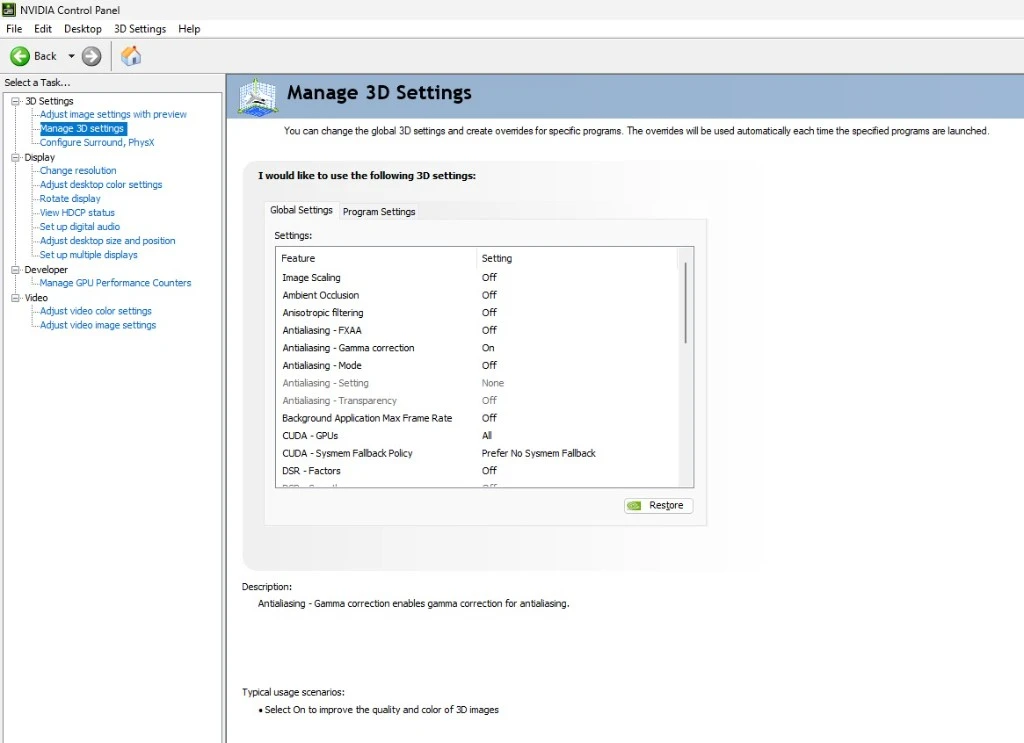
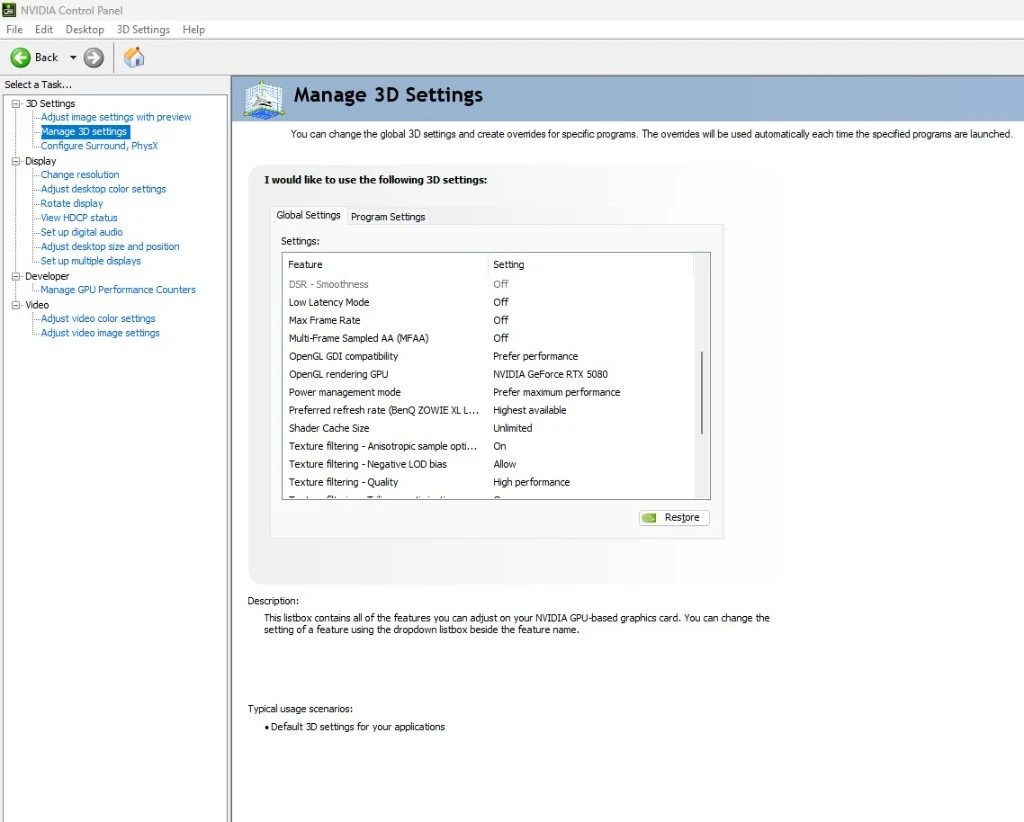
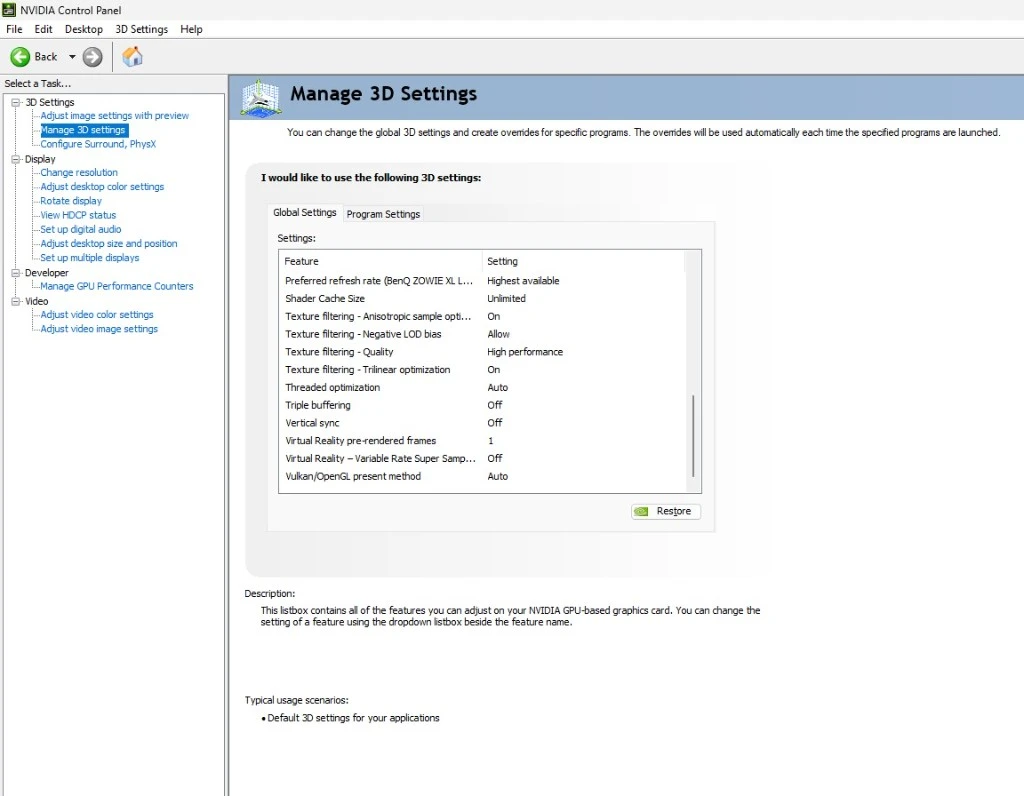
Open NVIDIA Control Panel, then 3D Settings > Manage 3D settings > Global Settings. Anything not in this table stays on its default.
| Feature | Setting |
|---|---|
| Image Scaling | Off |
| Ambient Occlusion | Off |
| Anisotropic filtering | Off |
| Antialiasing - FXAA | Off |
| Antialiasing - Gamma correction | On |
| Antialiasing - Mode | Off |
| Background Application Max Frame Rate | Off |
| CUDA - GPUs | All |
| CUDA - Sysmem Fallback Policy | Prefer No Sysmem Fallback |
| DSR - Factors | Off |
| Low Latency Mode | Off |
| Max Frame Rate | Off |
| Multi-Frame Sampled AA (MFAA) | Off |
| OpenGL GDI compatibility | Prefer performance |
| OpenGL rendering GPU | Your NVIDIA graphics card |
| Power management mode | Prefer maximum performance |
| Preferred refresh rate | Highest available |
| Shader Cache Size | Unlimited |
| Texture filtering - Anisotropic sample optimization | On |
| Texture filtering - Negative LOD bias | Allow |
| Texture filtering - Quality | High performance |
| Texture filtering - Trilinear optimization | On |
| Threaded optimization | Auto |
| Triple buffering | Off |
| Vertical sync | Off |
| Virtual Reality pre-rendered frames | 1 |
| Virtual Reality - Variable Rate Super Sampling | Off |
| Vulkan/OpenGL present method | Auto |
Hypertune
Let Hypertune do it
The Fortnite settings above are free. Hypertune does the parts most players skip: CPU and GPU overclocking, faster memory settings, network tuning, Windows features and a Game Hub profile for Fortnite, applying only what you turn on. Hypertune stress-tests every overclock and skips it if your cooling can't hold it, creates a restore point, and reverts in one click.
Game Hub profiles change in-game settings through each game's config files, which is the only way to change them, and that is all they change. Hypertune makes no unsafe changes.
Up to 60% higher FPS; results vary by hardware and game. See how Hypertune works
Anti-cheat
Is Hypertune safe with Easy Anti-Cheat?
Fortnite uses Easy Anti-Cheat. Hypertune makes no unsafe changes. Read the safety page.
Questions
Best Fortnite Settings and FPS FAQ
Why is my Fortnite FPS so low?
Start with Rendering Mode. Nanite, Global Illumination, Reflections and Hardware Ray Tracing are DirectX 12 features that Performance mode turns off. Epic's support page suggests Performance mode for PCs with low frame rates. Then check that Vsync is off and the Frame Rate Limit is not below your monitor's refresh rate.
Is Performance mode better than DirectX 12 in Fortnite?
For FPS, yes. Epic's competitive guide uses Performance mode, which runs on DirectX 12 with most rendering features turned off. DirectX 12 mode is the better-looking option for a PC that already holds its refresh rate.
Why does Fortnite stutter even with high FPS?
On DirectX 12, Epic says Fortnite can keep recompiling shaders. Clear the graphics driver's shader cache as the stutter section shows, then turn off the NVIDIA and Discord overlays.
What are the best Fortnite settings for a low-end PC?
Use Performance mode, the low-end column in the settings-by-PC table, and untick High Resolution Textures in the Epic Games Launcher. The Windows and NVIDIA settings are the same on every PC.
Does Hypertune have a Fortnite profile?
Yes. Fortnite is in Hypertune's Game Hub profile list. You turn the Fortnite profile on in Hypertune, and it changes Fortnite's in-game settings through the game's config files.
[TECHNICIAN] Check the FAQ answers for accuracy once the values above are confirmed.
More games
Settings guides for other games
Coming soon.